
Antivirus Deep
Secret NotesTools
4.85.00 Reviews
- Version
- 1.1.0.0
- Installs
- 10.00K
- Age Rating
- Everyone
Screenshots
Our Review of Antivirus Deep
 Analysis by Appyee
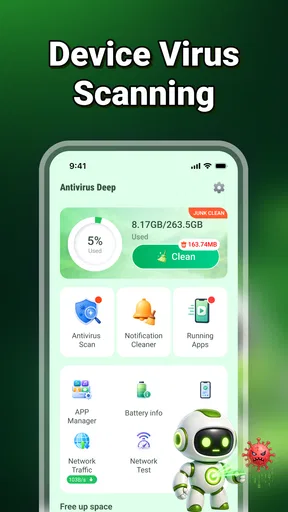
Antivirus Deep is the kind of tool I would open when my phone feels cluttered, a downloaded file looks questionable, or I want one place to start a basic device check. It is a free Android utility from Secret Notes, listed in the Tools category, and its main appeal is the combination of virus scanning and junk-file cleaning rather than a long menu of unrelated extras.
After using it, my impression is fairly straightforward: this is best approached as a simple first check, not as a complete security strategy. The app can be useful for people who want a focused way to inspect a phone and tidy unnecessary files, but it also demands sensible expectations. A scan result is a starting point for a decision, while important security habits still depend on the operating system, the source of your downloads, and your own choices.
Where the first scan can become confusing
The biggest friction with a utility like this usually appears before the scan finishes. A new user may expect one tap to explain every item on the phone, yet security and cleaning tools often need time to examine storage and classify what they find. I would avoid repeatedly starting new scans just because the first screen seems quiet. Let the current process finish, then read the result instead of treating a changing progress display as a problem.
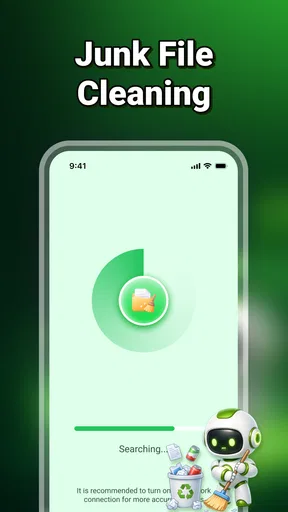
It also helps to separate the two jobs in your mind. Virus scanning is about looking for potentially harmful software or files, while junk cleaning is about identifying items that may no longer be useful. Those are not interchangeable tasks. A clean result from one does not automatically prove the other, and removing clutter is not the same as fixing a security issue.
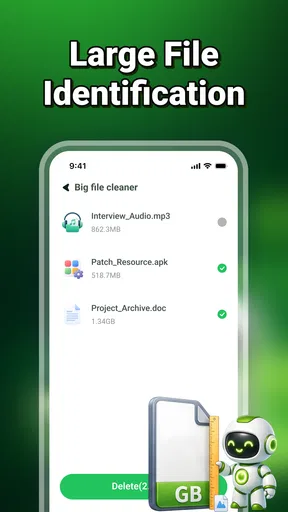
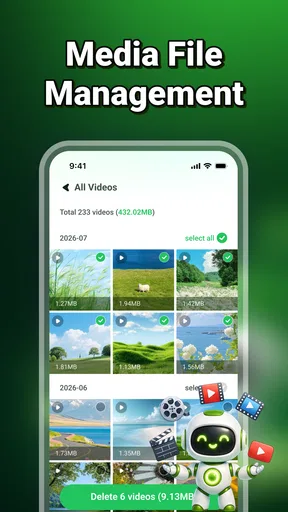
That distinction matters when the app presents a recommendation that feels urgent. I would inspect the item name, location, and reason for the recommendation before confirming a cleanup. Temporary files are usually easier to evaluate than personal downloads, old documents, photographs, or files belonging to an app you still use. The safest workflow is selective rather than automatic: review first, remove second.
Some users may also get stuck because they expect the tool to behave like a full-time security suite. My experience suggests it is more useful as an on-demand inspection tool. If your priority is continuous monitoring, account protection, browser safeguards, or advanced privacy controls, you may prefer a broader security product designed around those functions. This app’s strength is its directness, not an enormous feature list.
The store rating is a 4.8 average from around 180 ratings, and the app has passed the 10K-install mark. That gives it a useful level of public interest, but I would still judge it by how well it fits your routine. A highly rated cleaner can remain a poor choice for someone who wants detailed technical reports, while a simple scanner may be exactly right for someone who wants less complexity.
What to check before blaming the scan
If the scan appears stuck, the first thing I would check is whether the phone is busy with another demanding task. Close large downloads, pause video playback, and avoid launching several storage-heavy apps at the same time. This is not a special trick for Antivirus Deep; it is a practical way to give any device inspection a clearer path through the phone’s storage.
Next, check that the phone has enough free space for ordinary operation. A device that is nearly full can make every utility feel unreliable, including the cleaner intended to help recover space. I would remove only files I already recognize as unnecessary, then reopen the app and try again. Do not delete random folders simply to create room, because that can cause a different problem later.
Keeping the app current is another sensible check. The current version is 1.1.0.0, and the minimum supported operating system is Android 9. If your phone runs an older system, compatibility is the first issue to resolve rather than repeatedly retrying the same action. On a supported phone, restarting the device before a second attempt is also reasonable when storage information or scan results look inconsistent.
I would pay attention to the wording used by the app. A warning should not be treated as proof that every flagged item is dangerous. Security tools rely on classification, and a file that looks unfamiliar may simply be something you downloaded, an installer you forgot about, or a component connected to another app. When in doubt, research the file’s purpose through a trusted source before deleting it.
There is a useful habit here that many people skip: take a moment to remember what changed recently. If you installed an app from outside the usual Android marketplace, opened an unexpected attachment, or noticed pop-ups immediately after a download, those details make a scan result easier to interpret. If nothing unusual happened and the phone is behaving normally, a warning deserves calm inspection rather than panic.
A safer setup routine for everyday use
My preferred setup is deliberately small. I would install the app on a supported Android phone, open it when the device is idle, and begin with a scan before touching any cleaning option. That gives me a baseline. Afterward, I would review the cleanup suggestions separately and keep anything whose purpose is unclear.
This order is important because cleaning first can remove evidence that would help explain a later problem. If you are investigating suspicious behavior, scan before deleting. If you are only trying to free space, you can be more practical, but you should still review personal folders and downloads manually rather than assuming every large file is junk.
I would also reserve a little time for the first run instead of starting it while rushing out the door. A phone may contain years of downloads, cached material, and forgotten installers. Even if the app presents a simple interface, deciding what to keep is a human task. The app can organize the inspection; it cannot know whether an old document is valuable to you.
For families, the Everyone content rating makes the app approachable, but that does not remove the need for supervision. A child may see a cleanup suggestion and confirm it without understanding what will disappear. I would show younger users the difference between temporary clutter and personal files, and I would make sure they know not to install unfamiliar software merely because a message tells them to do so.
Because the app is free, it is easy to try without adding a purchase decision to the setup. That is convenient for a quick test on an older supported phone or a secondary device. Still, free does not mean every result should be accepted automatically. I would use the cost advantage to evaluate the workflow, not as a reason to lower my standards about what gets removed.
How I recover when a workflow goes wrong
Suppose a scan stops responding or the result does not appear as expected. I would first leave the app normally, wait a moment, and reopen it. If that does not help, I would restart the phone, confirm that other apps are not consuming the device’s resources, and try one focused scan. Repeating the same action rapidly can make troubleshooting harder because you no longer know which attempt produced which state.
If the problem occurs during cleanup, I would stop and check whether the phone’s free space and behavior have changed. Do not immediately run a second cleanup to chase a larger number. The goal is a stable phone, not an impressive-looking total. If an app begins crashing after files were removed, I would consider whether those files were connected to that app and reinstall or repair the affected app through normal Android settings only when appropriate.
A practical recovery trick is to keep a short mental record of the last action: scan completed, a category was selected, a particular item was removed, or the app was closed while working. That detail is more useful than simply saying “the cleaner broke.” It helps you decide whether to retry, undo a recent change through the affected app, or stop making changes until you understand the result.
I would never use a cleaner as a substitute for a backup. Before removing anything that matters, copy important photographs, documents, or work files to a location you trust. This is especially important when the app groups items by type rather than showing the full context in which each file is used. A few minutes spent preserving important material is worth more than recovering a little extra storage.
If you see a warning after installing a new application, remove the suspicious application through Android’s normal app-management controls rather than relying only on a cleaner’s button. Then observe whether the original symptom disappears. A security scan can help identify a concern, but uninstalling the source and changing unsafe download habits are often more meaningful than repeatedly scanning the same phone.
When Antivirus Deep is not the cause
It is tempting to blame the newest utility whenever a phone becomes slow, warm, or unusually busy. That conclusion is not always fair. A system update, a cloud synchronization task, a nearly full battery, a failing storage component, or one badly behaved third-party app can create the same symptoms. If the phone is slow outside Antivirus Deep, test the device after closing the utility and compare the behavior before deciding.
Battery drain can also come from unrelated background activity. Check which apps are using power in Android’s system settings, and look for a pattern over time instead of judging from one short session. A scan naturally asks the phone to inspect many files, so temporary activity during that job is not automatically evidence of a fault. The more useful question is whether the phone returns to normal after the inspection ends.
Likewise, not every pop-up or browser redirect is caused by a file that a scanner can remove. Some come from notification permissions, an unwanted browser setting, or a website that persuaded the user to allow alerts. In that situation, review browser and notification settings directly. Antivirus Deep may still be worth using as one check, but changing the relevant setting is the action most likely to solve the problem.
There are also cases where another option is better. If you manage sensitive work accounts, need centralized protection, or want detailed explanations for every detection, choose a security solution built for that level of control. If your only goal is to remove a few known files, Android’s built-in storage tools may be quicker and less intrusive. If you mainly want to protect passwords and accounts, a password manager and strong account security may provide more value than another cleaning pass.
I would skip this app if you are uncomfortable reviewing file categories or if you expect a guarantee that the phone is safe after one scan. I would also avoid depending on it for a device that is already showing serious signs of compromise, such as repeated account takeovers or persistent system-level changes. In those situations, secure your accounts from another trusted device and seek more specialized help instead of experimenting with multiple cleaners.
The everyday workflow that makes the most sense
Imagine downloading a document from an unfamiliar message and then noticing that the phone has less free space than usual. My routine would be to avoid opening the document again, start a scan, and wait for the result. I would then inspect any flagged item by name and location, compare it with what I remember downloading, and remove only what I can identify confidently. After that, I would check the original message and sender rather than treating the scan as the end of the investigation.
For routine maintenance, I would use a different rhythm. Once in a while, I would scan when the phone is idle, review old downloads, and leave personal files alone unless I have already backed them up. I would not run a cleaning process every time the phone feels slightly slow. That symptom often has a different cause, and unnecessary cleanup can create confusion without improving performance.
One non-obvious benefit of this approach is that it turns the app into a decision aid rather than a button you press blindly. By comparing scan findings with recent downloads and known storage habits, you learn which clutter is genuinely yours and which behavior deserves attention. That makes future checks faster and reduces the chance of deleting something important.
Another useful trade-off is convenience versus context. Antivirus Deep can bring scanning and cleanup into one place, which is easier than opening separate tools. However, a combined screen may encourage people to treat every recommendation as equally urgent. I would deliberately slow down at the point where the app asks for cleanup confirmation. The time saved by a single interface is not worth losing a needed file.
The developer is Secret Notes, and the app’s focused identity is clear: it is a tool rather than a social, entertainment, or productivity platform. That narrow purpose works in its favor when I want a quick inspection without learning a large security suite. It works against the app when my needs extend into account monitoring, privacy management, or professional device administration.
My practical verdict
I see Antivirus Deep as a useful, approachable first layer for Android users who want virus scanning and junk-file cleaning in one free app. Its simple purpose makes it easy to test, and the Everyone age rating keeps it accessible to a broad audience. I especially like the idea of using it before deleting clutter, because that order encourages safer decisions.
My reservation is not that the concept is weak; it is that users may ask it to do too much. No cleaner can decide the personal value of every file, and no single scan replaces cautious downloading, current system software, backups, and account protection. The app is most convincing when used as a calm inspection step, not as a promise that every security concern has disappeared.
With its 4.8 average and more than 10 thousand installs, it has enough early adoption to justify a look, while its free price makes that trial easy. I would recommend it to someone who wants a straightforward starting point and is willing to review results carefully. I would point a technically demanding user toward a more comprehensive security product, and I would tell anyone with a simple storage problem to compare it with Android’s built-in tools first.
In short, I would keep this app in the “check, understand, then act” category. Start with a scan, separate threats from clutter, protect important files, and investigate symptoms that continue outside the app. Used that way, Antivirus Deep can be a practical addition to a basic Android maintenance routine without pretending to replace every other security measure.
Verdict
Strengths of Antivirus Deep
- Simple interface makes core antivirus tools easy to access.
- On-demand scanning helps check suspicious files when needed.
- Can provide an extra security layer alongside built-in device protection.
- Useful for users seeking a lightweight security utility.
- May help identify potentially unwanted or risky applications.
Limitations of Antivirus Deep
- Protection quality may vary compared with established antivirus brands.
- Some features may require payment or an upgraded subscription.
- Scanning can consume battery and system resources on older devices.
- Results may include false positives that require manual verification.
- Privacy practices and data handling should be reviewed before use.
Similar Picks in This Category
View All
Google LLC4.0

Gboard - the Google Keyboard
Google LLC4.5

Google Play services
Google LLC4.3

Google Play Store
Google LLC4.9

Files by Google
Google LLC4.5

SHAREit: Transfer, Share Files
Smart Media4U Technology Pte.Ltd.4.3
Frequently Asked Questions
What is Antivirus Deep and what does it do?
Antivirus Deep is designed to help protect Android devices from potentially harmful applications, suspicious files, and common mobile security threats. During testing, its main purpose was to provide on-demand scanning and basic security checks rather than replace every security feature on the phone. Users should review the available tools, supported Android versions, and scan options before relying on it as their only protection.
Is Antivirus Deep free to download and use?
Antivirus Deep may be available as a free download, but the exact features offered without payment can depend on the app version, region, and developer’s current business model. Some security applications include advertisements, optional premium tools, or subscription-based protection. Before installing, check the Google Play listing for in-app purchases, subscription terms, renewal conditions, and whether important scanning features are restricted.
Does Antivirus Deep slow down the phone or drain the battery?
Any antivirus application can use processor power, memory, storage, and battery while scanning files or monitoring activity. In normal use, Antivirus Deep should generally have a limited impact when scans are performed occasionally, although the experience may vary depending on the device and the number of installed apps. Older phones may notice slower performance during full scans, so scheduling them while charging can be helpful.
What permissions does Antivirus Deep require?
The permissions requested by Antivirus Deep can vary according to its features and Android version. A security app may need access to installed applications, files, storage, or device activity to perform meaningful scans. Users should carefully read each permission request and avoid granting access that seems unrelated to the advertised functions. It is also wise to review permissions periodically and remove the app if its behavior appears unusual.
Can Antivirus Deep completely protect my device from viruses and malware?
No antivirus application can guarantee complete protection against every threat. Antivirus Deep can be useful for identifying suspicious files or applications, but safe browsing habits remain essential. Download apps from trusted sources, keep Android and other applications updated, avoid unknown links and modified APK files, and check the developer information before installing. If the app reports a threat, follow its recommendations carefully and investigate the source before deleting anything important.
